
WIX APPS
Removed a Wix app? Clean up what it left behind
Cancel the app’s paid plan if it has one, delete the app from Manage Apps or your editor, then publish. Wix doesn’t say this removes every script an app added. So check four places: widgets on your pages, Custom Code, old app pages and what each page still loads.
In this guide
YOUR CHECKLIST
Track your app clean-up
Tick each step when it’s done. Use the notes for anything that still shows up, and where you found it.
Your work stays on this page. Copy or download it before you leave. Your notes include any boxes you left unchecked.
1. What deleting an app removes
Wix sorts apps into three kinds, and each kind is deleted a different way. Full-page apps, like Wix Stores or Wix Blog, add their own pages to your site. Some apps sit on a page as a widget, a box you place in the editor, like an Instagram feed. Dashboard-only apps work behind the scenes, like analytics or automation tools.
When you delete a full-page app and publish, Wix says its widgets, pages, member areas, data collections and dashboard tools are removed for good. A widget app goes when you remove each copy you placed. Deleting some widgets removes the whole app: Wix’s example is the event list widget, which uninstalls Wix Events.
Deleting an app can lose its data, so Wix says to export or back up first. Deleting also doesn’t cancel the app’s paid plan. And a third-party app, one made by another company, keeps its own data. Wix says it doesn’t store that information.
Sources: Wix: Deleting apps from your siteWix: Getting your data from third-party apps
2. Delete it in the right order
- Save what you need. Export the app’s data, or ask its developer for a copy.
- Write down every page where the app shows up. Save the page source of one of them, as section 4 explains.
- If you pay for the app, cancel first. Go to Premium Subscriptions in your Wix account. Click More Actions next to the app, then Cancel App. Select Cancel auto renew and click Submit.
- Delete the app the way Wix says for its kind. The steps are below.
- Publish your site.
Dashboard-only app: go to Manage Apps in your site’s dashboard. Click More Actions next to the app, then Delete. Pick a reason and click Delete App.
Widget app: open your editor, click the widget and press Delete. If you added it more than once, Wix says to remove each copy, so check every page. Publishing then removes the app’s tabs from your dashboard.
Full-page app: in the Wix Editor or Wix Studio, click My Business on the left. Select the app, click More Actions, then Delete App, and confirm. In Wix Harmony, click + Add at the top left, go to the Apps category and click Manage Apps at the bottom. Then click the app and choose Delete app.
If you can’t see Cancel App, ask the site owner: Wix lets only some roles cancel app subscriptions. If a paid app isn’t in Premium Subscriptions, ask its developer how to cancel. You can add an app again later, but you may need to rebuild its widgets and data. These are Wix’s steps in October 2026, and Wix may move these screens.
Sources: Wix: Deleting apps from your siteWix: Canceling an app subscription
3. Look in Custom Code
- Go to Settings in your site’s dashboard.
- Click Custom Code in the Development & integrations section. If you don’t see it, scroll down the Settings page.
- Read each snippet’s name. Look for the app or the company that made it.
- Turn off one of the app’s snippets, then check your live site. Repeat for each of its snippets.
Custom Code holds snippets: short pieces of code that someone pasted into your site, such as a tag from another company. It lives in the dashboard, so the steps are the same in every Wix editor. Wix doesn’t say that deleting an app removes a snippet pasted for it. You won’t spot snippets in the editor either. Wix says they don’t appear as elements there, and other people who work on your site may not know about them.
Turning snippets off one at a time is how Wix suggests finding the one behind a problem. If nothing breaks after a week, delete the ones you turned off. Keep a copy of any you might need again. Nothing visibly breaks when you turn off a site verification tag, such as one for Google Search Console, so leave those alone.
Wix says tracking scripts, such as Google Analytics, Google Tag Manager and Facebook or TikTok pixels, don’t work through custom code. Connect those in Marketing Integrations instead. Since December 2025, Wix may block some snippets that used to work until their provider updates them. And if you assign a different domain to your site, Wix deletes your snippets. Wix doesn’t give help with other companies’ code, so ask a snippet’s provider what it does.
Sources: Wix: Adding custom code to your siteWix developers: About custom code
4. Read the page’s source
- On a computer, open a page of your live site in a private Chrome window. Don’t use the editor.
- Press Ctrl+U on Windows or Cmd+Option+U on a Mac to open the page source.
- Select all the text and copy it.
- Paste it into the page checker linked below, or search it for the app’s name.
Custom code only runs on your published site, so check the live page. View source shows the page as Wix’s server sent it, before its scripts run. Three things in it tell you about apps.
First, a large block of data near the end lists the apps installed on your site. It’s the same on every page. It also holds Wix’s own apps, so expect names you didn’t add. An app’s own code usually doesn’t appear as a script address, so look for the app’s name in this list.
Second, your Custom Code snippets appear, with the names you gave them. Wix tools can add entries here too, such as a site verification tag. Third, each outside script has an address. Its host is the server name between https:// and the next slash, and it shows where the code comes from. Wix loads its own scripts from static.parastorage.com. A script from browser.sentry-cdn.com also shows up on Wix pages that have no Custom Code, so it is likely Wix’s own. Search the web for any host you don’t know.
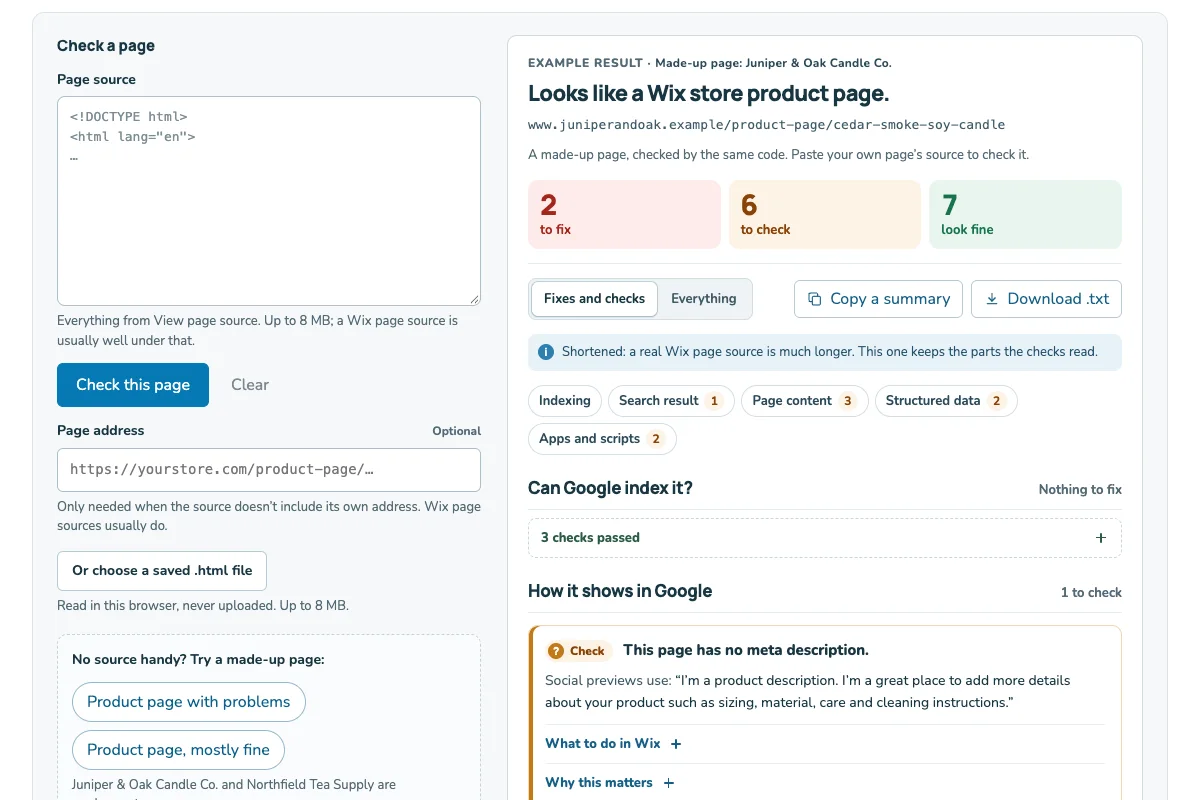
Paste the source into the Wix page checker. It shows what Google can read on the page, plus the apps installed on your site and its Custom Code.
Sources: Wix: Viewing your page’s source codeWix developers: About custom code
5. Compare before and after
| In the source | What it is | Before | After | Keep it? |
|---|---|---|---|---|
| static.parastorage.com | Wix’s own scripts | Found | Found | Yes |
| browser.sentry-cdn.com | Also on Wix pages | Found | Found | Yes |
| Wix Stores, in the app list | Wix’s store app | Found | Found | Yes |
| [Pop-up app], in the app list | The app they deleted | Found | Not found | Gone |
| Snippet named [Pop-up app] tag | Code in Custom Code | Found | Found | No: turn off, then delete |
| cdn.[pop-up-app].example | Script that snippet loads | Found | Found | No: goes with the snippet |
| cdn.[unknown].example | Not sure yet | Found | Found | Search the host first |
In this made-up example, the app’s name left the list. But a snippet pasted in when the app was set up still loaded a script. That is the kind of leftover to look for.
Is the deleted app’s name still in the list? Check that you published and that the app is gone from Manage Apps. Then look for a copy of its widget that you missed. Is a snippet or host from the app’s company still there? It may be left over. It may also belong to an app you still use, so check before you remove it. Not sure which apps you’ve had? Wix can list every third-party app ever installed on your sites if you request an archive of your data.
A clean source is a good sign, not proof. Scripts can load other scripts after the page opens.
Is a page still slow? Test one app at a time to see whether an app is the cause.
Sources: Wix: Deleting apps from your siteWix: Getting your data from third-party apps
6. Old app pages and 404s
When an app’s pages are deleted, their old addresses no longer exist. Wix shows its 404 page for any address on your site that doesn’t exist. That page has a short “page not found” message and a button to your home page. Wix doesn’t say it adds redirects when an app’s pages go, so open one old address in a private window and see.
A 404 can be the right answer. Google says 404 responses are not necessarily a problem when a page was removed without any replacement. If a page has a real replacement, add a 301 redirect, a permanent forward from the old address to the new one. Use the URL Redirect Manager under SEO & GEO in your dashboard. Redirects need a connected domain.
In Google Search Console, the old addresses may show as Not found (404). Google says it may keep checking them for a while, less and less often. Wix says the error clears by itself once Google drops each address.
For many redirects at once, see our guide to Wix 301 redirects.
Sources: Wix: About the 404 error pageGoogle: Page indexing reportWix: Search Console 404 errorsWix: Setting up a 301 redirect
7. Members area, contacts and sign-ups
Some apps add pages to your members area, the part of your site that logged-in members use. Wix says deleting a full-page app and publishing removes its member areas. For other kinds of apps, Wix’s page on deleting apps doesn’t say. After you publish, open your members area and look for pages from the old app.
Wix also doesn’t say what happens to contacts, labels or subscribers an app added. Check Contacts before you delete and again after, so you know what changed.
Sign-ups that a third-party pop-up or form app collected may be stored only by that app. To get them, Wix says to contact the app’s developer, and to search the Wix App Market for their contact details. Ask before you delete the app.
Sources: Wix: Deleting apps from your siteWix: Getting your data from third-party apps