
WIX APPS
Do Wix apps slow your store? Check each page
They can. Wix says it can’t speed up apps that load from outside servers, and it advises fewer apps on each page. So don’t guess: see what your pages load, then test one app at a time, with and without it.
In this guide
YOUR CHECKLIST
Test one app at a time
Tick each step as you go. Write your numbers in the test log below. Change only one thing at a time.
Your work stays on this page. Copy or download it before you leave. Your notes include any boxes you left unchecked.
1. What Wix says about apps and speed
Wix’s help pages say outside apps can add to your load time. Wix explains that apps made by other companies load from outside servers, not Wix’s. So Wix can’t optimize that code.
Wix gives three tips. Use only the apps your site needs. Limit the apps and widgets on each page. Put outside apps on secondary pages, with a button from your home page that leads to them.
Some app code goes on every page. Wix’s developer docs describe one kind of app code, an embedded script, that does this. So an app can load on pages where you never see it.
That’s why one score for your whole site isn’t enough. Check your key pages one at a time.
Sources: Wix: Site performance best practicesWix: About Core Web VitalsWix Developers: Add an embedded script extension
2. The three numbers, and where to find them
| Number | What it measures | Good | Poor |
|---|---|---|---|
| LCP | Biggest item shows | 2.5 s or less | Over 4 s |
| INP | Page reacts to a tap | 200 ms or less | Over 500 ms |
| CLS | Things jump around | 0.1 or less | Over 0.25 |
Google calls these three numbers Core Web Vitals. LCP (Largest Contentful Paint) is how long the biggest image or text block takes to show. INP (Interaction to Next Paint) is how fast the page reacts to taps, clicks and typing. It is measured in milliseconds (ms). CLS (Cumulative Layout Shift) is how much things jump around without warning.
Google checks each number at the 75th percentile. So at least three in four visits should meet the goal. A page passes when all three are good. Between good and poor is “needs improvement.”
Site Speed, in your Wix dashboard, shows these numbers from real visits, page by page. Its data comes from Wix Analytics and covers all browsers. Scores average the past 30 days. Data shows only for sites with 10 or more site sessions in the last 7 days. Its labels read Good, Fair or Poor, using Google’s ranges. Wix may move or rename this screen.
PageSpeed Insights, Google’s free test, has two parts. The top shows real Chrome visits from the past 28 days. If a page has too few, you may see your whole site’s data (Origin), or none. The bottom is a lab test: Google loads the page on a simulated phone or computer. No one taps the page in a lab test, so it can’t measure INP. It shows Total Blocking Time (TBT) instead, which Google uses as a lab stand-in. TBT is how long the page is too busy to respond. Your app test uses this lab part.
After a change, Wix suggests waiting at least three weeks before judging real-visitor numbers.
Sources: Wix: About Core Web VitalsWix: Understanding your Site Speed dashboardGoogle: About PageSpeed Insightsweb.dev: Web Vitals
3. See what your pages load
- Open a live page of your store in Chrome on a computer. Use your published site, not the editor.
- Press Ctrl+U on Windows or Cmd+Option+U on a Mac to open the page source.
- Select all of the code and copy it.
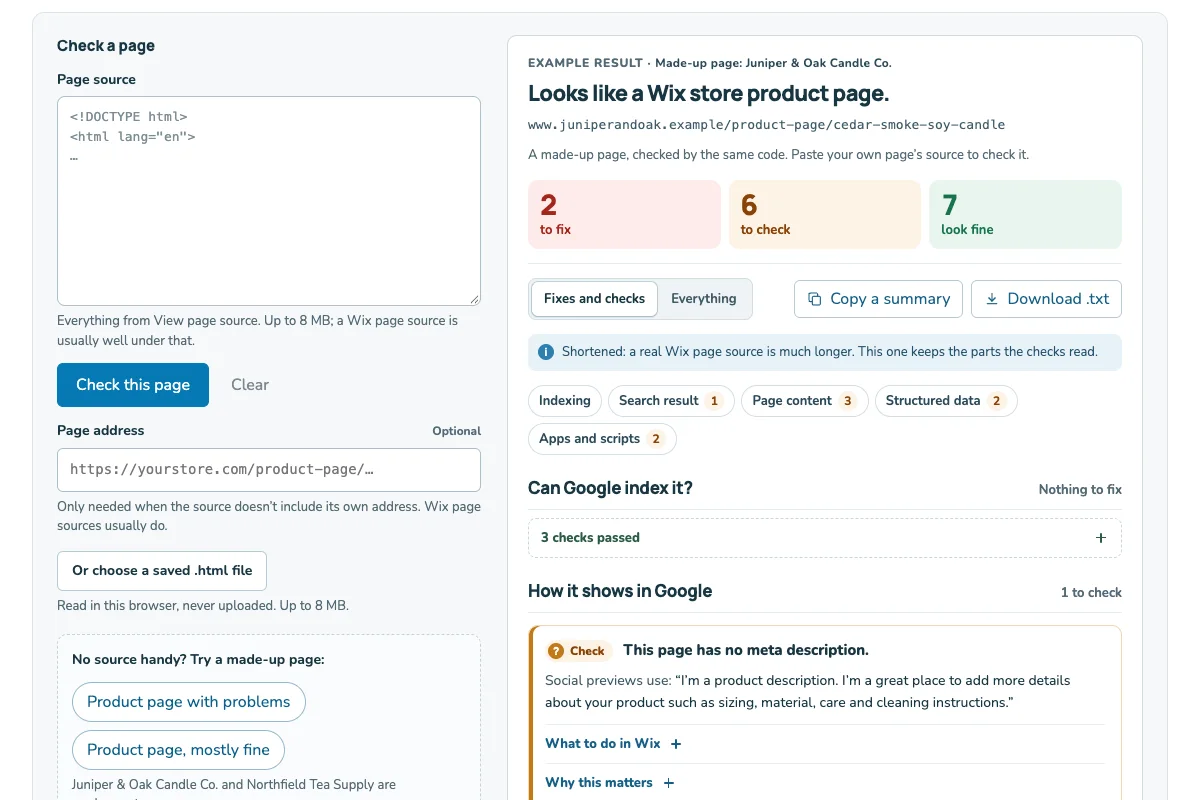
- Paste it into the page checker.
- Repeat for your home page, a category page and a product page.
The page source is the code your browser gets for a page. The page checker reads it and lists the apps and Custom Code it finds.
The app list shows the apps installed on your whole site, not just this page. So it looks the same on each page. Some entries are Wix’s own apps, which show up on many Wix sites. Look for apps you forgot you had.
Outside scripts come from addresses that aren’t Wix’s, such as tracking tags or pasted code. Wix’s own files come from Wix addresses, such as static.parastorage.com. Pasted code can be set to load on chosen pages only, so outside scripts can differ by page. Wix suggests adding outside code only where you need it.
The source can’t show everything. App code often doesn’t appear as its own script. So you can’t always tell which app runs on which page. Look at each page yourself, too. Note the apps you can see, such as reviews, a social feed or a chat button.
Try it on your own pages with the Wix page checker.
Sources: Wix: Site performance best practicesWix: Embedding custom code on your site
4. Test one app, with and without it
- Open PageSpeed Insights at pagespeed.web.dev. Enter the live page’s address and click Analyze.
- Use the Mobile results. From the lab test, write down LCP, TBT and CLS.
- Run it two more times. For each number, keep the middle value.
- Remove only that app’s widget from this page, then publish. If a pop-up says this deletes the whole app, don’t confirm. Use the Chrome test below instead.
- Run three more tests. Compare the middle values with and without the app.
Why three runs? Google says lab results can change from run to run, even when the page doesn’t. Its web.dev guide suggests three or more runs and the median, which is the middle value. Start with mobile. On a fast computer, a heavy script may not show its real cost.
Change one thing at a time. If you remove two apps together, you won’t know which one mattered. Note the widget’s settings first, so you can put it back. Don’t delete an app just to test it. Wix says removing some widgets deletes the whole app, so test those apps in Chrome. Do the same if the widget is the app’s only one.
Some apps have nothing to remove from one page, because their code is on every page. You can test those in Chrome without changing your site. Open Chrome’s developer tools (F12, or Command+Option+I on a Mac) and click the Network tab. Google’s guide suggests throttling, so the test acts more like a phone. Pick a 4G option in the throttling menu. Reload the page three times and note the Load time at the bottom. Then type part of the app maker’s web address in the Filter box. Right-click one of its requests and choose Block request. Older versions of Chrome say Block request URL. Reload three more times and compare. Blocking stops when you close the developer tools.
For example, take a made-up store, Northfield Tea Supply. Its owner tests a reviews widget by removing it from her product page. Products on Wix share a product page design, so the reviews leave every product that uses it. Its chat app is on every page, so she blocks it in Chrome instead. She logs every run and changes nothing else that day.
A gap between the middle values is a clue, not proof. Google notes that good lab results don’t always mean real visitors do well. Site Speed shows what real visitors get.
Sources: Google: About PageSpeed Insightsweb.dev: Identify slow third-party JavaScriptChrome DevTools: Request conditionsWix: Deleting apps from your siteWix: Customizing your product pageWix: Understanding your Site Speed dashboard
5. What to change
Did one app make a clear difference? Start with the smallest change that helps. Then test again the same way.
Move the app to a secondary page, as Wix suggests in section 1. Or move it down the page. Wix suggests placing heavy items, such as galleries, videos and store widgets, below the fold. That’s the part of a page you see only after you scroll.
Clean up code. Wix suggests reviewing the code in your Custom Code settings and Marketing Integrations. Then remove code that adds no clear value. For analytics and ad tools, Wix recommends its marketing integrations over pasted code.
Ask the app’s maker. Its developer may know a setting that makes the app load less. If you don’t use the app, remove it.
No clear difference from any app? Then apps may not be the main cost on that page. Wix’s best-practice page also covers images, videos and fonts.
Test any app you add later the same way, including our own app, myuser.ai.
Before you delete an app, read how to clean up after removing a Wix app.
Sources: Wix: Site performance best practicesWix: About Core Web Vitals
6. What speed does and doesn’t do for search
Google says its ranking systems use Core Web Vitals, and it recommends good scores. It also says there is no single page experience signal. Good scores don’t promise a top ranking. Google says it always tries to show the most relevant page, even when the page experience is not great.
Google says its systems generally judge content page by page, with some site-wide checks. It also says chasing a perfect score just for search may not be worth your time.
Wix’s Core Web Vitals page goes further. It links Good, Needs Improvement and Poor to a full, partial or no SEO benefit. Google’s page experience guide doesn’t describe levels like these. So make pages faster for your shoppers first. Don’t expect a ranking change from a score alone.
Sources: Google Search Central: Understanding page experienceWix: About Core Web Vitals
A test log you can copy
Copy this log into your notes, or save it. Fill in your own numbers as you test. Leave a line blank if a tool doesn’t show it.
My one-app speed test
Store: [store name]
App I’m testing: [app name]
Page: [page name and address]
Date and time: [when I started]
With the app (PageSpeed Insights, Mobile, lab test)
Run 1: LCP [seconds] · TBT [ms] · CLS [number]
Run 2: LCP [seconds] · TBT [ms] · CLS [number]
Run 3: LCP [seconds] · TBT [ms] · CLS [number]
Middle values: LCP [seconds] · TBT [ms] · CLS [number]
What I changed: [one change only]
Without the app (same tool, same page)
Run 1: LCP [seconds] · TBT [ms] · CLS [number]
Run 2: LCP [seconds] · TBT [ms] · CLS [number]
Run 3: LCP [seconds] · TBT [ms] · CLS [number]
Middle values: LCP [seconds] · TBT [ms] · CLS [number]
Chrome blocking test, if I used it: load time with the app [3 runs] · blocked [3 runs]
Site Speed (Mobile) for this page today: LCP [seconds] · INP [ms] · CLS [number]
Site Speed (Mobile) three weeks later: LCP [seconds] · INP [ms] · CLS [number]
Decision: [keep / move / ask the maker / remove]
A blank log, not a result. Fill in your own numbers. Results vary from run to run, so compare the middle values.