
Why is Google showing the wrong title or meta description for my Shopify store?
Open the exact page Google links to. If its live title or description is wrong, fix the Shopify field or theme. If the page already has the new wording, check when Google last crawled it. Google can choose different text for different searches.
In this guide
Which Shopify setting changes this search result?
| Google links to | Where to edit in Shopify |
|---|---|
| Your homepage | Online Store → Preferences. In Social sharing image and SEO, edit the homepage title and description. |
| A product address | Open the product under Products. Use the pencil in Search engine listing to edit its page title and description. |
| A collection address | Open Products → Collections and select that collection. Edit its Search engine listing. |
| A page such as About or Shipping | Open Online Store → Pages and select the page. Edit its Search engine listing and save. |
Copy the URL under the result, then open it. A brand search can lead to a collection or product. Editing the homepage affects the homepage only. If the small name above the clickable title is wrong, that is the site name. Google chooses it for the site and uses separate signals, including homepage WebSite structured data.
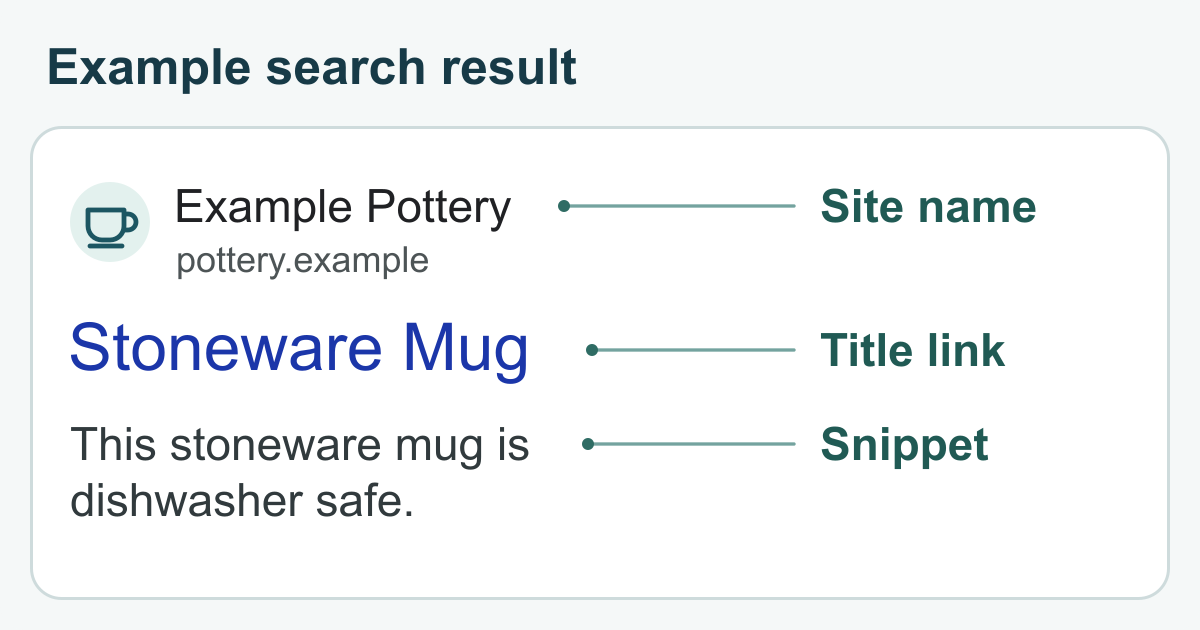
Check the title and description on the published page
- Open the public URL as a visitor. In a desktop browser, view the page source and find the title element in the head.
- Find the meta element whose name is description. Compare its content with the description you saved in Shopify. A second occurrence inside a social tag or a script is a different field.
- Check for conflicting title elements or description tags. Record the exact wording the live page supplies before changing any theme settings.
A merchant can see the right text in Shopify and still serve something else. In one Shopify Community thread, a theme had commented out the description tag. In another, the current description was present in the source while Google displayed a different passage. Those observations call for different fixes.
If the published tags are missing, duplicated, or still contain old wording, give the theme developer the exact URL, the field you saved and the conflicting HTML. Ask them to check the published theme and any SEO app that writes these tags. A correct social sharing preview is useful for checking the social tags, which have separate names such as og:description.
Find out whether Google has seen the edit
- Paste the full result URL into URL Inspection in the correct Search Console property. Check the Google-selected canonical and last crawl date.
- If available, open View crawled page and compare the returned HTML with the current page. Select Test live URL to fetch today’s page.
Suppose you changed the homepage title on Thursday, but URL Inspection lists Tuesday as the last crawl. The earlier crawl could only see the old title. If the live test can fetch the updated page, request indexing for that URL once. Repeated requests do not speed up recrawling. Google says changes to a title link can take days to weeks to process.
If Google selected a different canonical URL, inspect that address as well. For example, if the inspected URL redirects to your primary domain, check the live title and crawl date at the destination.
What if Google has crawled the new text and still rewrites it?
For the clickable title, read the title tag alongside the main heading and the product or collection name customers see. If the title says “Summer Clearance” and the prominent heading still says “Winter Sale,” decide which accurately describes the live page and bring the wording into agreement. Give each collection a specific name shoppers can distinguish in a result.
For the description, record the query that produced the unexpected snippet. Suppose a search for “dishwasher safe stoneware mug” shows the care instructions from your product page. That passage may answer the shopper’s question better than a general brand description. If the care instructions are wrong, correct the product page itself. If they are accurate, a different snippet can serve that query well.
After editing, verify the live tags, note the date and recheck the same URL and query after Google has revisited. A different result for another query is expected.