
SESSION RECORDINGS
How to set up and use session recordings on Shopify
To record visits on a Shopify store, add a session recording app and switch it on in your theme. In myuser.ai, turn on the myuser.ai app embed in your theme editor, then switch on Session replays in the dashboard. Recording starts from then on; the Free plan records up to 3 visits a day, kept for 7 days of viewing.
In this guide
1. Start with a question you can inspect
“Why are sales low?” is too broad for one replay. Ask something you can inspect: does the mobile pop-up cover the size selector? Does an email open the product it promised? Can a shopper find the refill beside the bottle? Choose one question before watching.
A session recording reconstructs captured storefront activity. It can show page changes, scrolling, clicks and visible states when they were recorded. It does not show the shopper’s thoughts, everything in their browser or what they did elsewhere. A replay ending after a click does not establish the reason for leaving.
Write observations in plain terms. “The form opened over the product options” describes a visible state. “The shopper hated the form” adds an explanation you have not established. A Checkout activity moment can mark a button click; check the actual checkout or order record before calling it a successful next step.
New to replays? What is session recording? explains how a replay is rebuilt from page events rather than filmed, and what it can’t show. It’s on the site of Session Recordings, from the same team.
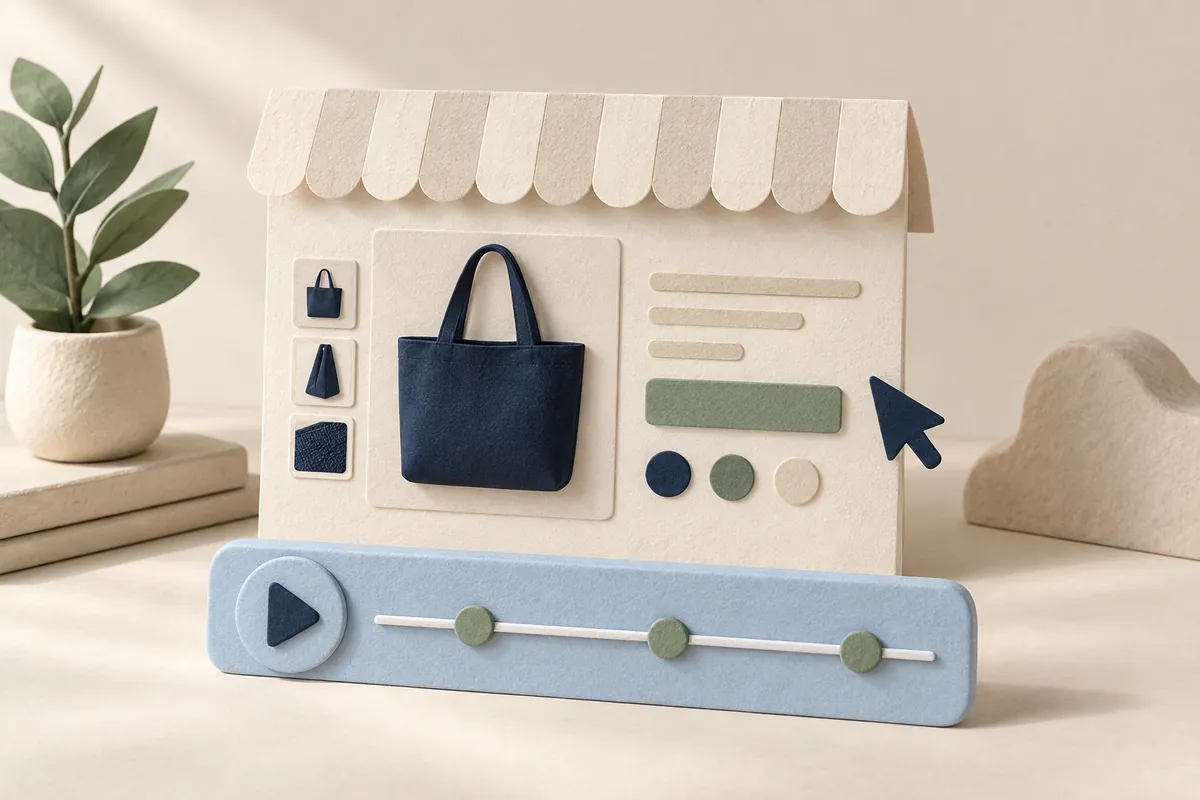
2. Turn on session recording in your Shopify store
- Add myuser.ai to your store from the Shopify App Store.
- In Shopify, go to Online Store and click Edit theme. In the sidebar, click App embeds, turn on myuser.ai and click Save.
- In myuser.ai, find Session replays on the dashboard and turn recording on.
- Open your store in a new window and click around. A visit with an interaction can appear in the list; visits before you turned it on are not recorded.
In myuser.ai, find Session replays on the dashboard. If recording is off, use the switch or Turn on session replays action and read the confirmation. Return after a store visit with an interaction. Recording starts prospectively; switching it on does not recreate earlier visits.
Check the visits and coverage information available in your plan. Daily recording limits and viewing windows affect what you can inspect. The Free plan has a shorter viewing window than the paid plans. Follow the current pricing page for the allowance that applies to your store.
A quiet look-and-leave visit may not produce an uploaded recording. Visits without a qualifying interaction, incomplete capture and plan limits can leave gaps. Coverage describes the visits the recorder could account for; it is not proof that every person counted by your analytics tool has a replay. Investigate one known test visit before interpreting an empty list as a tracking or sales problem.
See the myuser.ai product walkthrough for how store visits connect to the wider workflow.
Check current plans and recording allowances before starting your review.
From the same team, Session Recordings is a free app for Shopify and Wix that records visits and turns them into click and scroll heatmaps.
Sources: myuser.ai product workflowmyuser.ai plans and recording allowancesShopify Help: Extend your theme with apps (app embeds)
If you are choosing a recording tool, see Merchant Shortlist’s Shopify session replay app comparison for the features and limits to compare before you pick one. Merchant Shortlist’s publisher works for myuser.ai.
3. Find a visit that matches the question
Start with All visits and the visit time. The list groups available recordings by day and shows useful details such as device and pages. For a mobile form issue, open a mobile visit with the relevant page. Do not select only the longest or most dramatic session.
Use Viewed a product or Added to cart to find shopping visits. Signed up can help locate a visit associated with a signup or known identity. Clicked an email and Clicked a text help find recorded returns attributed to supported tracked message links. Known visitor helps find sessions linked to someone in your store’s records.
These are finding tools, not a complete funnel report. A known visitor is not necessarily a buyer, and Signed up is not proof of a new subscription. If an expected visit does not appear in a filter, check All visits. Open the relevant customer or order record to verify the event you need before changing a message rule.
4. Watch the moment and the context around it
Play the visit once to understand its path. Then use the progress bar or activity list to revisit the moment that answers your question. In the web dashboard, the page list helps you follow navigation. Pause to inspect the visible product, selected option, form or error instead of trying to remember it from playback.
Use the back and forward controls to move ten seconds at a time. Change playback speed or turn on Skip idle for long gaps. Turn idle skipping off when the time around a form or action matters. A pause alone does not tell you whether the visitor was reading, distracted or away.
When the web dashboard includes an email or text origin scene, that scene is reconstructed from tracked message information. It provides context for the storefront visit; it is not a recording of the shopper’s inbox.
5. Check three useful shopping paths
For a pop-up, inspect what was visible before it appeared, what it covered and the next action. On a phone, check whether the close control and product choices remained usable. Note a displayed error or thank-you state. Confirm the actual subscription record separately before deciding that the form created a valid new signup.
For an email or text return, compare the promise with the first storefront page. “See the travel bottle” should open a useful route to that bottle. Look for the wrong variant, a difficult-to-find guide or another form covering the next step. Open your own test message and repeat the path directly to verify a suspected problem.
For a returning visitor, inspect which products or options they viewed. Comparing a bottle and a refill gives you a useful question about how clearly those choices are explained. It does not prove the shopper needs a refill now. Check purchase history and marketing permission before using the observation in a follow-up.
A signup and a later return from an email may be separate visits. Review them separately instead of expecting one uninterrupted recording from form submission to purchase.
Connect these checks to your Shopify pop-up setup and its signup promise.
For a reminder visit, use the cart-recovery destination checks alongside the replay.
For past buyers, the customer winback guide explains how purchase history and a new visit can inform a useful follow-up.
6. Write an observation, then a next check
Keep a short note while the replay is open. Include the page, device, time within the replay and what is visible. Add a possible explanation in a separate sentence. Finish with a direct check that could confirm or challenge it.
For example: “At 00:18, the form covers the size options. The visitor closes it, then opens the options.” Your hypothesis might be that the form arrives before the shopper can choose a size. Your next check is to reproduce that page on the same screen size and inspect the form’s display setting.
Choose a specific action after that check. You might adjust the form’s position or timing, then retest the product controls. Do not change the offer, layout and message sequence at once if you want to learn which change helped. The review note below keeps each step distinct.
7. Use recordings with outcomes, not as a substitute
Look at several relevant visits to see whether a visible problem recurs. Include visits with different outcomes when available. Record how you chose them so that a few memorable examples do not become a claim about every shopper. Filtered replay counts are not a reliable denominator for signup or purchase rates.
After a fix, repeat the direct test first. Then review comparable available visits and the appropriate result: successful form submissions, completed orders or support reports about the problem. Keep the traffic, period and any other changes in view.
To estimate additional sales caused by a message or design, you need a suitable comparison. An email-attributed replay followed by an order does not establish that the email caused the purchase. Use recordings to find and inspect the change; use order records, costs and a sound comparison to assess its effect.
Use the email revenue attribution guide to separate sales credit from additional sales.
8. Handle recordings and saved visits carefully
Everything a shopper types is masked in their browser before it’s sent, including in your store’s own pop-up, so a replay shows that typing happened, not what was typed. The replay names only what the shopper submits: a search they run, and the name, email or phone they send through your myuser.ai sign-up pop-up, which your store receives anyway. A replay can also contain customer identity or message context. Review your store’s disclosures and the information on screen before sharing a note or screenshot.
The standard storefront recording retention is 30 days, while the Free plan’s viewing window is seven days. Keep or star availability depends on the plan; eligible saved recordings remain beyond ordinary expiry until deleted. Check the controls and current plan before assuming a visit has been preserved. Keep only what you need for a concrete review.
In the web dashboard, Share creates a link back to the dashboard and requires an account with access. It does not turn the recording into a public video. Use an internal review note without customer details when the replay itself is unnecessary.
Review myuser.ai privacy information and your store’s own disclosure obligations.
Sources: myuser.ai plans and recording allowancesmyuser.ai privacy policy
9. Do I need visitor consent to record?
It depends on where your shoppers are. Shopify’s cookie banner is meant for regions that require opt-in consent, such as the EEA and the UK, and it’s off by default elsewhere, such as the US. You can turn it on anywhere.
myuser.ai’s recorder follows the choice your banner records through Shopify’s Customer Privacy API. When a visitor hasn’t allowed analytics, it doesn’t record, and it starts or stops if they change their choice during the visit. If your store doesn’t ask, there’s no choice to follow, so it records. A recorded visit is not marketing consent. This is general information, not legal advice.
Sources: Shopify Help: Configuring customer privacy settingsmyuser.ai privacy policy
10. Can myuser.ai’s recordings show Shopify’s checkout?
No, not with myuser.ai: it records through its app embed, which runs on your online store theme’s pages. Shopify’s checkout isn’t part of your theme: apps add to it through Shopify’s checkout extensions, and Shopify no longer runs checkout.liquid or extra scripts there. Even web pixels, which can follow checkout events, run in a sandbox that can’t read the page. So a replay ends when the shopper moves into checkout.
A Checkout activity moment marks the click on a checkout button. To see what happened next, open the abandoned checkout or the order in Shopify.
If a shopper left at checkout, see why an abandoned checkout email didn’t send.
Sources: Shopify.dev: Checkout apps and extensionsShopify.dev: Web pixels and their sandbox
11. Build a review habit you can finish
Choose one question for the review, inspect a manageable set of relevant visits and keep one clear note for each useful observation. Assign the next check to someone and give it a date. If nothing in the recording answers the question, say so and choose another source of evidence.
The free Shopify session replay demo follows a simulated Solara store visit from a product page to the cart and delivery details. Jump to an activity moment, scrub the timeline or skip idle time to inspect what happened around it. The review note is ready to edit and save whenever you find something useful. Bring the same approach to the recordings your own store has available.
Explore the Shopify session replay demo without connecting a store or viewing real shopper data.
A recording review note you can copy
Keep the observed event and your explanation in different fields. The filled example is fictional.
My review note
Question: [one thing to inspect]
Visit time and device: [time, time zone, mobile or desktop]
Page and replay moment: [page, timestamp]
Visible observation: [what the recording actually shows]
Possible explanation: [a hypothesis, not a fact]
Other evidence needed: [direct test, subscription record, send log or order]
One proposed change: [what and why]
How I will check it: [test and relevant outcome]
Owner and review date: [person, date]
Use an internal reference when needed. Leave customer names, email addresses and private links out of public notes.
Fictional mobile pop-up review
Question: Can a shopper choose a bottle size when the form appears?
Page and moment: Travel Bottle, 00:18 on a mobile visit.
Observation: The form covers the size options. The visitor closes it and opens the options.
Possible explanation: The form interrupts choosing a size.
Next check: Reproduce the page on the same screen size and inspect display settings.
Proposed change: Adjust the form so the product controls remain usable.
Check afterward: Repeat the direct test, then inspect comparable recorded visits.
This is a teaching example, not a customer session or a measured conversion result.